Resonance
The Resonance tab lets you draw an EQ curve that morphs with breath, for filter sweeps, vowel changes and other tonal movement. Unlike the Formants curve, which stays fixed, the Resonance curve changes as you play.
Zero and full curves
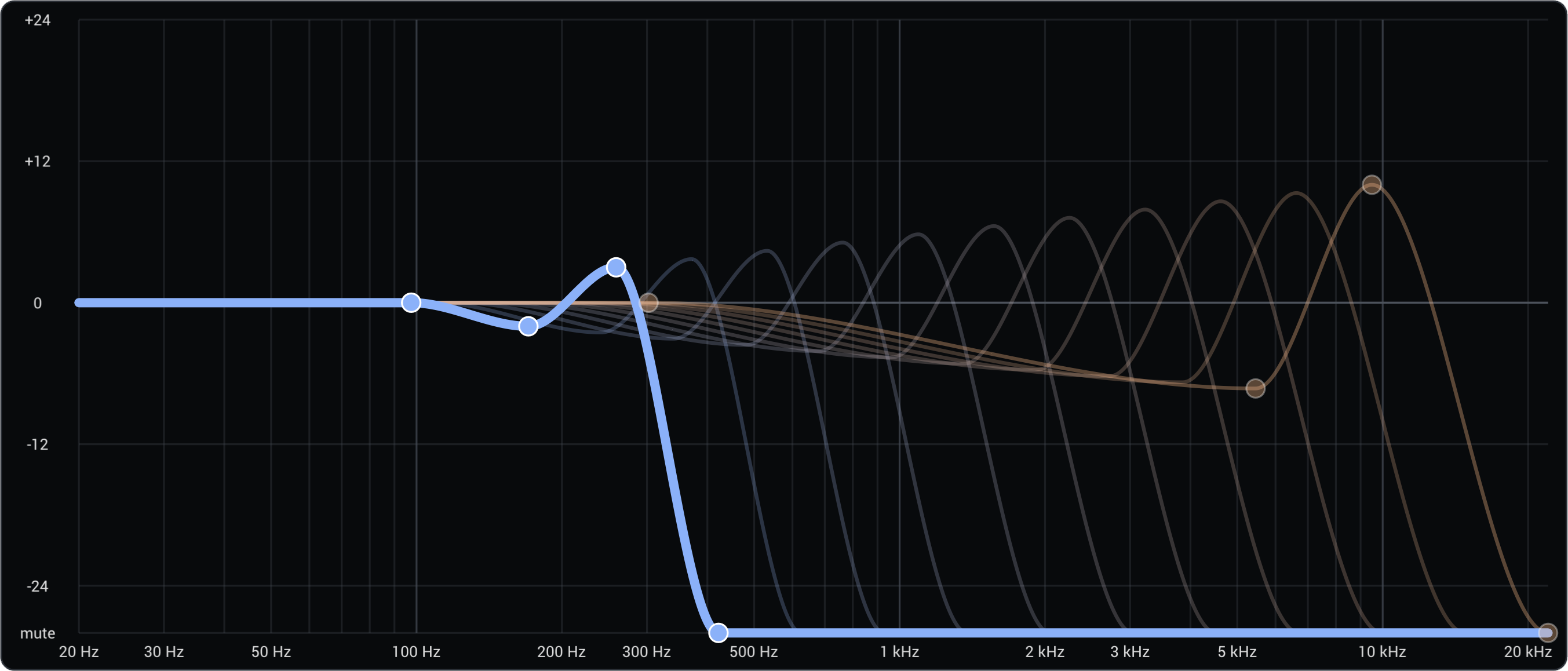
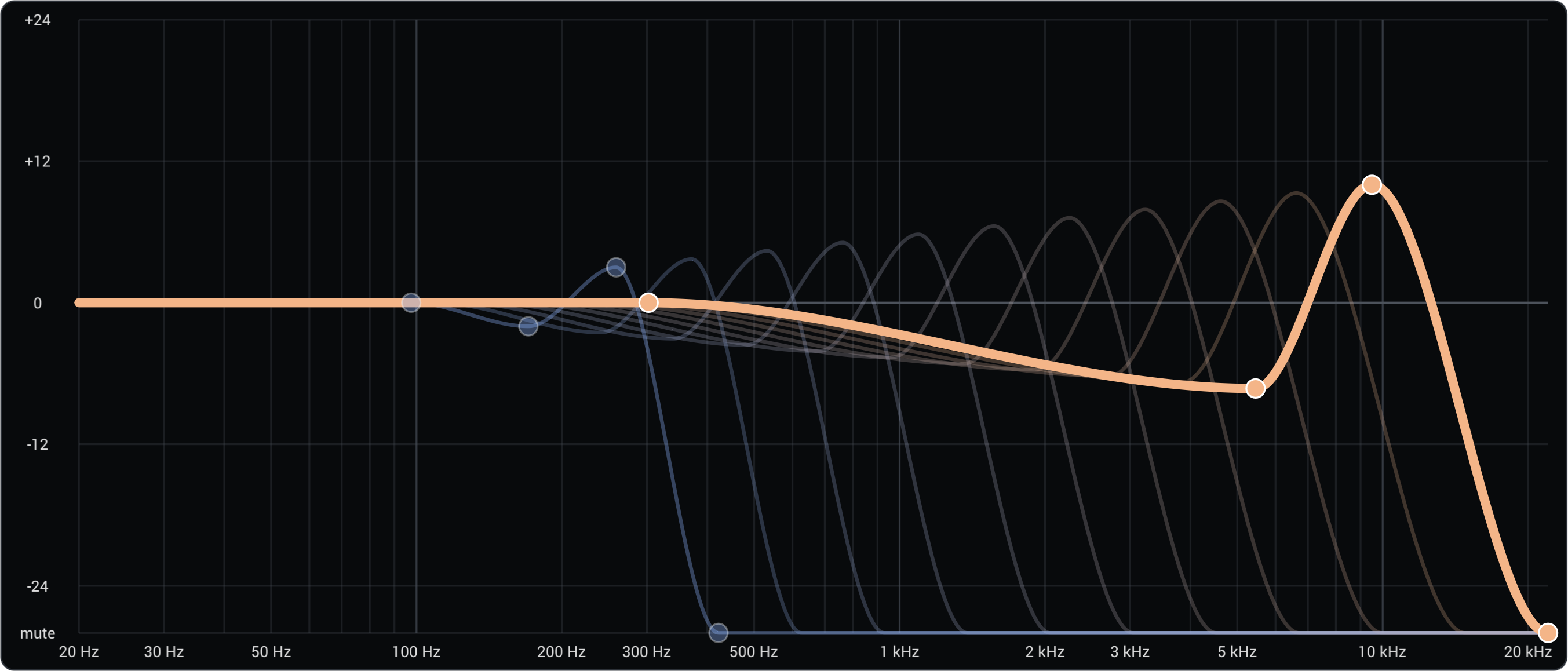
You draw two curves: one for zero breath (blue) and one for full breath (orange). Use the Zero / Full toggle to choose which one you're editing. In between, the curve morphs smoothly from one to the other. The faint lines between the two curves show the morph at 10%, 20%, …, 90% breath.
Both curves (zero breath and full breath) always have the same number of control points. Double-clicking adds/removes a point from both. Points are paired in frequency order: the lowest point on one curve pairs with the lowest point on the other, and so on.
Controls
- Response shapes how breath moves between the curves. In the middle, the morph follows breath evenly. Turn it right to move earlier in the breath, or left to move later.
- Tracking sets how far the curves follow the played pitch. At 0%, they stay fixed in frequency. At 100%, they shift with pitch. The editor shows the curves as heard at middle C (which is the same at any Tracking setting). Note that the fundamental frequency of middle C is 261.6 Hz, so at 100% Tracking, the region below 261.6 Hz in the editor is below the played note's fundamental.
- Set shape applies a preset to both curves.
- Actions (scale, shift, normalise, invert) apply to the active curve only. Copy to other curve and Swap curves work on both.
- All notes keeps the resonance setup in sync across key notes (see Key Notes and Interpolation). Restore returns this tab to its values when opened.
Resonance knob
The Resonance knob in the EQ section of the main UI scales the strength of the curve: 0× is off, 1× (the middle position) is as drawn, and up to 3× exaggerates it. The editor always shows the curves at full strength (1×), regardless of the knob setting.
Turning the knob above 1× with a curve that has strong boosts can push the output above 0 dBFS, so keep an eye on the output meter (see Clipping audio).