Main UI
Patch selector

The top bar shows the name of the currently loaded patch and provides controls to navigate between patches. The left and right arrows step through patches in the current group (you can also use your computer keyboard's left and right arrow keys), and the menu button opens the full patch browser where you can choose any factory or custom patch, save your work, or import and export patch files. See Patches for more detail.
Settings menu
The gear icon in the top-right corner of the top bar opens the settings menu:
- Visualizer Enabled — toggles the harmonic visualizer in VIS mode; disabling it can reduce CPU usage on older hardware.
- Breath CC — selects the MIDI CC(s) used for breath/level control: CC 1 (Mod Wheel), CC 2 (Breath), CC 2 + CC 34 (High-Res Breath), CC 7 (Volume), CC 7 + CC 39 (High-Res Volume), CC 11 (Expression) or CC 11 + CC 43 (High-Res Expression).
- Portamento CC — CC 5 varies the portamento time; CC 65 selects minimum or maximum.
- Pitch Bend Range — sets the pitch bend range to off, 1 semitone, 2 semitones, a fifth, an octave, 2 octaves or 4 octaves. This can also be set by right-clicking the pitch bend wheel. When off, pitch bend does not change Addivox's pitch, but the wheel still moves and pitch bend messages are still passed on to other plugins.
- Audio & MIDI Settings... (standalone app only) — opens the system audio and MIDI device settings.
- Reset Synth Settings to Defaults — restores the first factory patch and resets transpose, tuning, pan shift, reverb, breath CC source, pitch bend range and the visualizer toggle to their defaults. Does not affect the Audio & MIDI Settings.
VIS / EDIT panel
The large panel in the middle of the UI has two modes, switched with the VIS / EDIT toggle in its bottom-right corner.
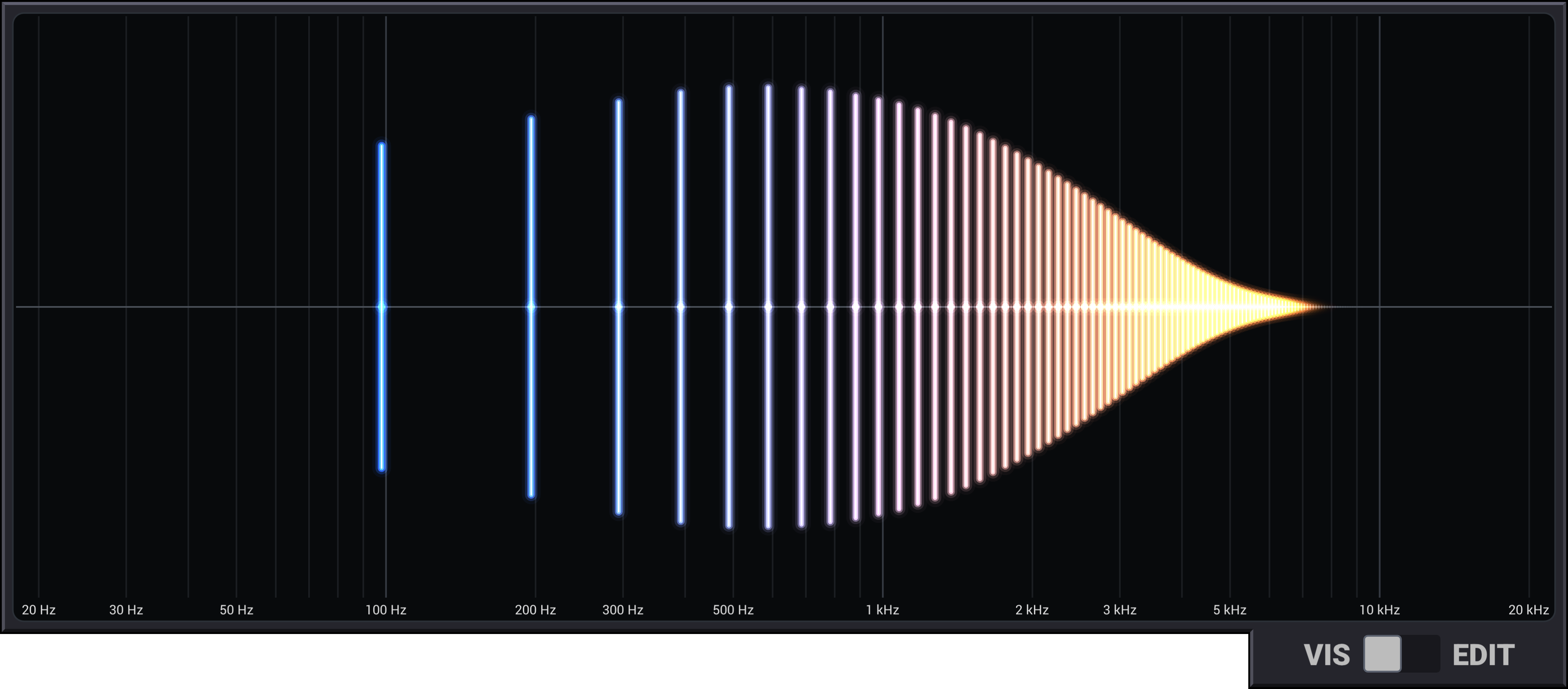
VIS mode shows a live bar chart of all 100 harmonics as you play. Bar heights update in real time to reflect the current output level of each harmonic, giving you a visual picture of the sound's harmonic content.
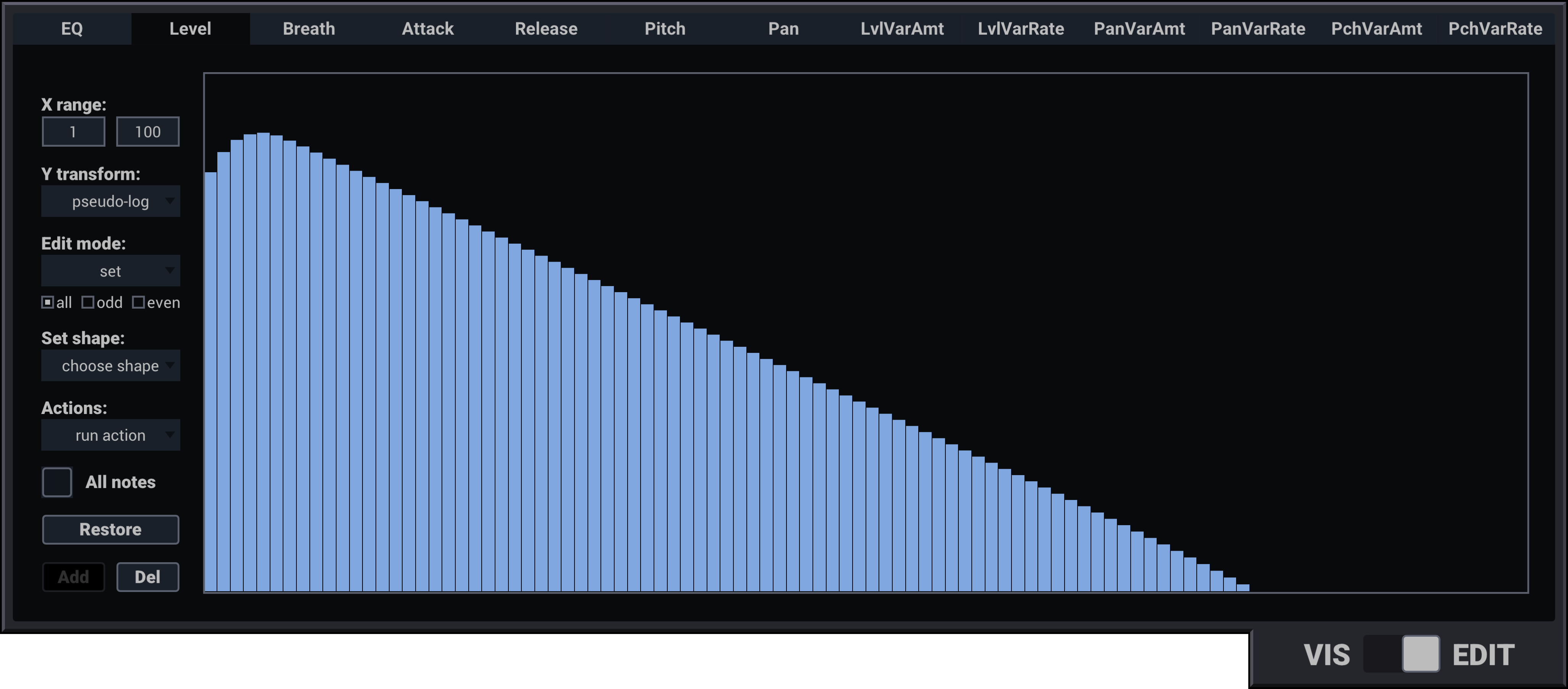
EDIT mode is where you shape the sound. It contains a set of tabs for editing per-harmonic parameters and the EQ curve:
- EQ — draws a frequency-response curve applied to the final sound. See EQ.
- Level, Breath, Attack, Release, Pitch, Pan, and six variation tabs — control the individual behaviour of each of the 100 harmonic oscillators. See Per-harmonic settings.
The keyboard at the bottom of the panel selects which key note you are editing in EDIT mode, and plays the corresponding note in VIS mode (see below).
Control panels
Below the main panel are five rows of knobs and controls:
- Pitch — transpose, tuning, portamento.
- Envelope — global attack and release scales.
- Variation — global scales for level, pitch and pan variation depth and rate.
- Output — global level scale and pan offset.
- Effects — drive, tone, chorus and reverb.
Meters
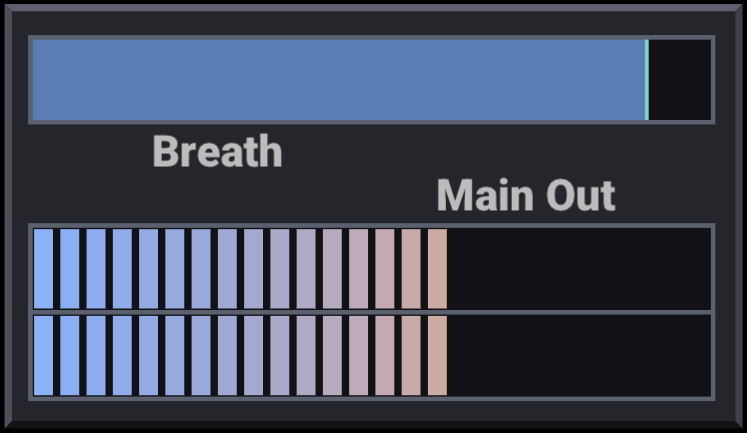
The breath meter on the top shows the current incoming breath/CC signal level. The output meter on the bottom shows the stereo output level; red indicators at the top warn that the signal is above 0 dB and may clip when rendered or passed to later processing.
Keyboard

The keyboard along the bottom of the UI highlights the note currently being played. In VIS mode you can click keys to play notes directly (at full breath). In EDIT mode, clicking a key selects which key note's settings are displayed in the editor; if no key note exists at that note, the editor shows the interpolated values for that pitch. See Key Notes and Interpolation.
The pitch bend wheel to the left of the keyboard bends the pitch of the currently held note. It follows pitch bend messages sent from the wind controller. Right-click the wheel to set the pitch bend range.